Updated 1 Oct 2026 for the App Store version.
If you’ve ever tried to play sound out of two speakers at once on a Mac — two Apple Studio Displays, studio monitors + headphones, a pair of AirPods and your MacBook speakers — you ran into the same wall most of us do: create a Multi-Output Device in Audio MIDI Setup, set it as your output, press F11 or F12, and watch the macOS volume slider go grey and refuse to move.
You’re not doing it wrong. macOS deliberately disables keyboard volume keys and the menu-bar slider when a Multi-Output Device is the default output. Apple treats aggregate devices as unitless — they have no master volume to control. The only “fix” Apple documents is manually opening Audio MIDI Setup and dragging a slider on each sub-device individually, every time. Not fun.
Halo is a free menu-bar utility that fixes this, now on the Mac App Store as Halo MultiSpeakers. It’s a personal fork of the older MultiSoundChanger (Apache 2.0), modernised for current macOS.
 Download on the Mac App Store
Free. Universal — runs native on Apple Silicon and Intel Macs. Requires macOS 13 (Ventura) or later.
Why Volume Keys Stop Working on a macOS Multi-Output Device
Apple’s CoreAudio exposes two kinds of audio devices: real hardware devices (each with its own volume scalar) and aggregate devices (virtual wrappers that route one audio stream to multiple sub-devices). A Multi-Output Device is an aggregate with “stacked” semantics — replicate the same audio to each sub-device.
Aggregate devices have no volume of their own. When macOS’s volume-key handler receives F11, it tries to write the system default device’s kAudioDevicePropertyVolumeScalar and fails silently on aggregates. The pill UI goes grey. That’s the limitation users hit when they Google:
- “mac volume keys not working multi-output”
- “control volume two Studio Displays”
- “multi-output device volume grey”
- “Apple Studio Display volume control keyboard”
- “combine speakers Mac keyboard volume”
Every forum thread lands at the same place: macOS doesn’t support it, and your choices are a paid tool (SoundSource by Rogue Amoeba, ~US $47) or a free workaround.
How Halo Restores Volume Control
Each sub-device inside a Multi-Output Device still has its own real, writable volume. Halo writes the new level to each sub-device of the aggregate individually, so the physical speakers change volume together even though macOS’s native control thinks they can’t.
In the App Store version you change the volume two ways:
- Drag Halo’s slider in its menu-bar menu — a slider that works while Apple’s is grey.
- Scroll on Halo’s menu-bar icon — hover over it and scroll up or down.
Either way, Halo’s own volume HUD shows the new level on the display under your cursor.
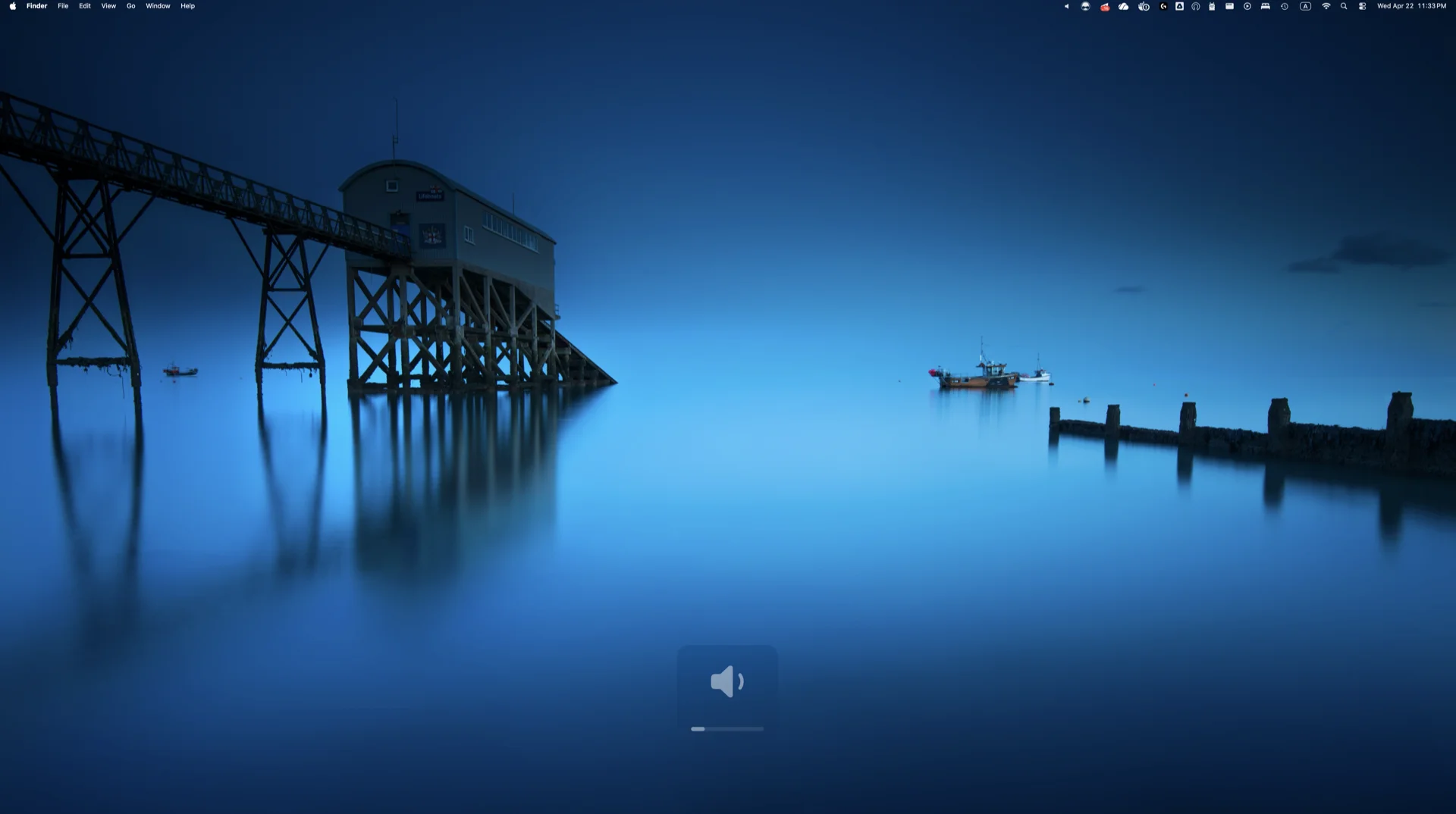
The keyboard volume keys are not part of the App Store version. Listening for F10/F11/F12 needs macOS’s Accessibility permission, and the App Store version doesn’t ask for it — so the keys stay with macOS, and on a Multi-Output Device they still do nothing. Use the slider or the scroll wheel instead. (An opt-in “Enable volume keys” setting is planned for version 1.2.) Halo’s menu — volume slider, output device picker, one-click Halo Speakers aggregate, Launch at Login toggle. The custom HUD that appears when you scroll on Halo’s icon or drag its slider — replaces Apple’s broken OSDManager on macOS Sequoia+.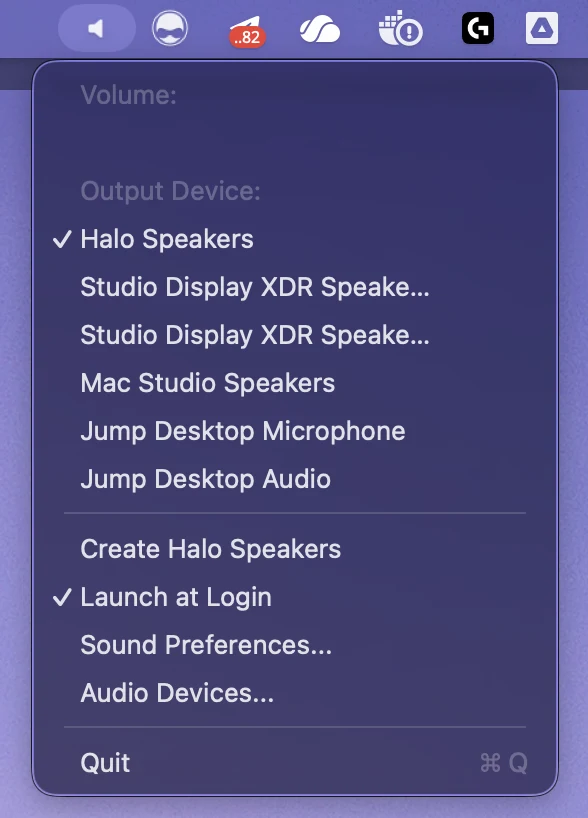
Alongside the core fix, Halo picks up a few quality-of-life improvements over the stock MultiSoundChanger:
- Custom in-app volume HUD — Apple’s private
OSDManagerAPI (the classic chiclets bar) stopped rendering reliably on macOS Sequoia, so Halo draws its own dark rounded panel with speaker icon and progress bar, on the display under your cursor. - Finer 32-step volume — each scroll step is ~3% instead of the OS default ~6%. Enough granularity to dial in a comfortable level.
- Scroll-wheel on the menu-bar icon — hover over Halo in the menu bar and scroll to change volume.
- One-click aggregate creation for two or more Apple Studio Displays (menu → “Create Halo Speakers”, or from the welcome window on first launch). Skips the Audio MIDI Setup dance entirely, and the aggregate is drift-corrected so the two displays’ speakers don’t fall out of sync.
- Volume persistence — each sub-device’s level is saved on change and restored at launch, so a cold boot doesn’t slam you with 0% or 100%.
- Launch at Login toggle, powered by
SMAppService. - Private by design — sandboxed, no account, no analytics, no network access. It talks only to CoreAudio, and your volume levels stay in the app’s own preferences on your Mac.
- Universal binary (arm64 + x86_64).
Features at a Glance
| Native macOS | Halo (App Store) | |
|---|---|---|
| Volume slider on Multi-Output Device | ❌ (greyed out) | ✅ |
| Volume keys on Multi-Output Device | ❌ | ❌ (planned opt-in, see above) |
| Scroll-wheel volume on menu bar | ❌ | ✅ |
| Custom volume HUD (modern macOS) | ❌ (broken) | ✅ |
| Auto-create aggregate for Studio Displays | ❌ | ✅ |
| Volume persistence across reboots | ⚠️ unreliable | ✅ |
| Launch at Login | ✅ | ✅ |
| Free | ✅ | ✅ |
| Signed by Apple | ✅ | ✅ (Mac App Store) |
Download
Download on the Mac App StoreFree. Universal — Apple Silicon and Intel. macOS 13 (Ventura) or later.
Setup Guide
1. Install from the Mac App Store
Search for Halo MultiSpeakers or use the button above. No permissions to grant — Halo doesn’t ask for Accessibility access.
2. Set Up Your Multi-Output Device
If you already have a Multi-Output Device in Audio MIDI Setup, Halo picks it up automatically — skip to step 3.
If you have two or more Apple Studio Displays and no aggregate yet, click Halo’s menu-bar icon → Create Halo Speakers. One click, done. (The welcome window on first launch offers the same button.)
For any other combination of outputs (AirPods + MacBook speakers, studio monitors, etc.):
- Open Audio MIDI Setup (
/System/Applications/Utilities/) - Click + → Create Multi-Output Device
- Tick the devices you want
- Right-click the new device → Use This Device for Sound Output
3. Use It
- Click Halo’s menu icon and pick your Multi-Output Device from the list.
- Drag the Volume slider in Halo’s menu, or scroll up/down while hovering over Halo’s icon.
- To mute, drag the slider all the way down — there’s no mute key in the App Store version.
- Optional: toggle Launch at Login from Halo’s menu.
Credits — Built on MultiSoundChanger
Halo is a personal fork of MultiSoundChanger by Dmitry Medyuho, released under the Apache License 2.0. Dmitry worked out the original CoreAudio incantations for writing to sub-device volumes — the hardest part of the problem. Without his project, this one wouldn’t exist.
The F11/F12 interception in the build I compile for myself uses MediaKeyTap by Nicholas Hurden (MIT), maintained downstream by the0neyouseek. The App Store version leaves it out.
Additions in this fork:
- Custom
VolumeHUDWindowto replace Apple’s broken privateOSDManager. - Modern-macOS compatibility fixes (universal binary, deployment-target bump, Sequoia storyboard module resolution, the unused private
OSD.frameworkremoved). - The “Create Halo Speakers” one-click aggregate action, with drift correction and a deterministic clock source.
- Per-device volume persistence.
- Launch-at-Login via
SMAppService. - A sandboxed Mac App Store build.
- New rebrand/icon.
Limitations You Should Know
Listed openly so you can decide whether Halo is right for you.
- No keyboard volume keys. The App Store version doesn’t ask for Accessibility access, which listening for F10/F11/F12 requires — so no volume keys and no mute key. The slider and the scroll wheel do the job instead. An opt-in for the keys is planned for 1.2; until then, that’s the trade.
- Scrolling works on Halo, not everywhere. Scroll-to-change-volume only reacts while your pointer is over Halo’s menu-bar icon or its open menu, not anywhere on screen.
- macOS 13 (Ventura) or later. The launch-at-login feature uses
SMAppService, introduced in Ventura. - “Create Halo Speakers” auto-aggregate only matches Apple Studio Displays, and needs at least two. For other devices, create the Multi-Output Device manually in Audio MIDI Setup. Halo will still control volume on it.
- Hobby scale. Single author, no bug tracker, and no guarantee a future macOS won’t break something. Updates arrive through the Mac App Store.
- Prefer a supported commercial tool? SoundSource by Rogue Amoeba is signed, notarized, supported, and costs ~US $47. A legitimate choice if you need guarantees.
License & Source
Halo inherits the Apache License 2.0 from MultiSoundChanger. The original copyright and licence are preserved, and the app’s About window credits the fork.
- App: Halo MultiSpeakers on the Mac App Store (version 1.1)
- Product page: media-mu.com/halo.html